Transportation Processes
Model the movement of a cargo between stationary processes as a graph of locations and transportation steps. A transportation process can combine series and parallel steps by pipeline, road, air, sea, rail and intermodal transport between origin and destination pairs. You define it by cargo type and payload, transportation mode, distance, energy intensity, material loss in transit and similar parameters.
A transportation process has:
- General parameters
- A graph that builds the process:
- Locations to travel from and to
- One or more transportation steps that move the cargo between those locations
The editor has three bottom tabs:
- General Information Tab: define the parameters of the whole transportation process.
- Editor Tab: build the process.
- Usage Tab: explained in Work with Tabs.
General Information
The General Information Tab holds these fields, which you select to edit:
- Name
- Resource transported
- Urban share
- Moisture content
- Notes
- Loss at Destination
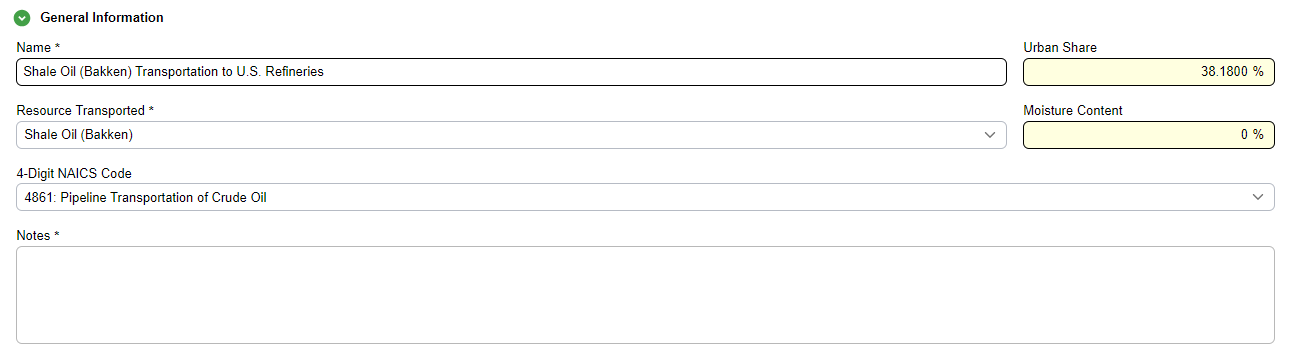
Select the transported resource first
When you build a new transportation process, select the material transported first. The energy intensity of most modes (all except Rail) depends on it.
| Field | Meaning |
|---|---|
| Urban Share | The fraction of the final delivery leg, the distance traveled inside the destination city or terminal area, that happens in a high-density urban environment. |
| Moisture Content | The amount of water in a material, usually as a percentage of the total mass (wet basis) or of the dry mass (dry basis). It matters for energy consumption because water is dead weight: it takes energy to move and gives no thermal or chemical value to the end process. |
Loss at Destination
Enter the loss at destination as either:
- Loss amount (per 1 kg of input)
- Rate (%)
When you edit the amount or the rate, PyGREET adjusts the other.
The table below shows the calculated loss. Select the Releases Due to Loss label to open the transported resource in Flows and edit the releases due to loss.
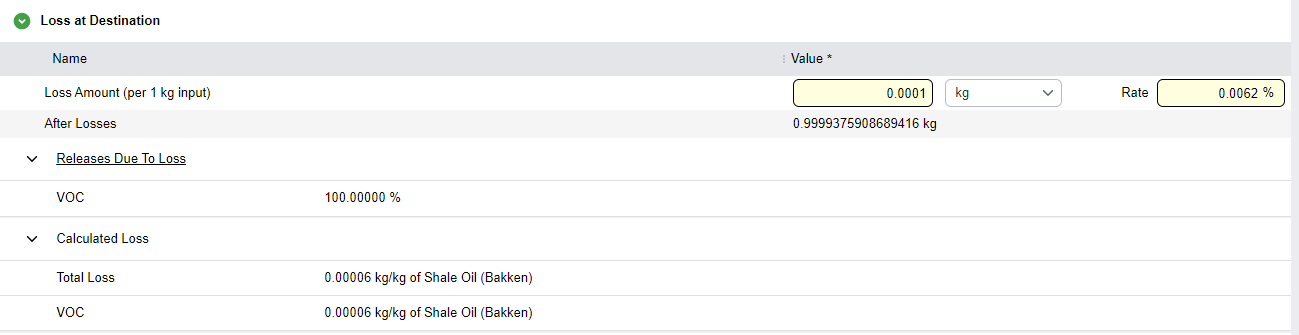
As in stationary processes, elements you declare in the Releases Due to Loss section of a flow enter the mass balance. PyGREET shows them as calculated losses and includes them in the pathway results.
Build the Process on the Canvas
The Editor Tab shows a canvas of blue and yellow blocks (nodes) joined by lines (edges):
- Blue nodes are locations.
- Yellow nodes are transportation steps.
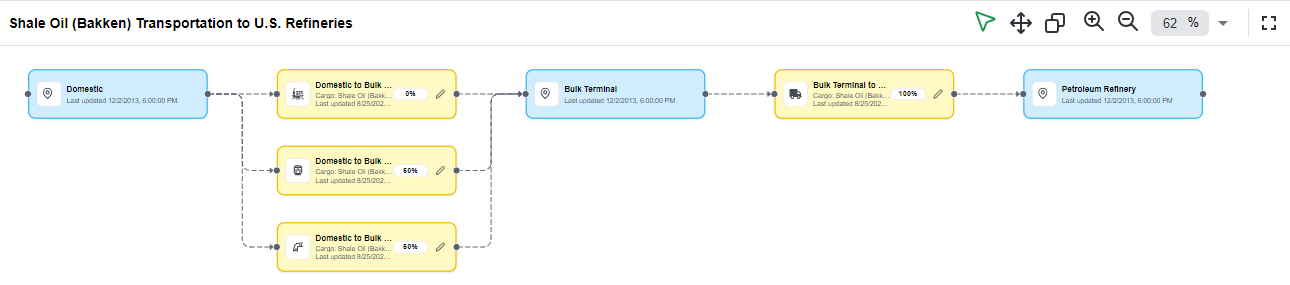
You can zoom the canvas, or open it full screen to look at the graph. Full screen hides the library tree, so you cannot drag a location or mode from the library while it is on.
Add Nodes
- Search the library for the location or mode you want.
- Drag it onto the canvas.
Manage Nodes
- Move: drag the node.
- Remove: right-click the node and select Delete.
- Duplicate: select the node, then select the copy button (two intersecting squares) in the top toolbar.
- Zoom: select the magnifying glass with + or -.
Connect Nodes
Each node has small circles at its ends. These are the connection handles.
- Select the circle at the right end of one node.
- Drag to the circle at the left end of another node. This creates an edge between the two.
- To delete an edge, right-click it and select Delete.
Connection rules
- Connect locations to transportation steps.
- You can connect a transportation step to another transportation step.
- The process must end in a location.
Locations
Locations give the process a clear graphical form. PyGREET does not use them in any calculation.
Set the Mass Share of a Step
A step node shows the mode icon, the step name, Cargo: <name> and Last updated <date>. It also shows the mass share of the cargo the step transports, as a percentage (for example, 100%).
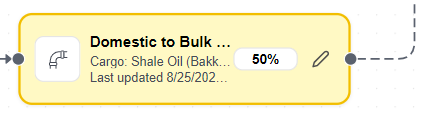
To change the mass share:
- Double-click the percentage on the step.
- Type a whole number from 0 to 100.
- Press Enter or leave the field to apply it. Press Esc to cancel.
Right-click the percentage to open the formula editor for the share. The tooltip reads "Double-click to edit, right-click for formula editor".
Parallel steps
Steps in parallel are several steps connected to the same start and end points. Their shares should total 100%. PyGREET does not currently check this total.
Open a Step
- Select the pencil icon on the step.
- A side panel opens with the step parameters.
Edit a Transportation Step
The step panel has a header block, then two sections. The header block shows:
- The step title
- Transportation Mode:, a link to the mode
- Cargo:, a link to the cargo
- The checkbox Account for backhaul travel
You can select Account for backhaul travel for every mode except Pipeline and Rail.
The two sections are User Specified Parameters and Losses. The footer has Cancel and Confirm. If you cancel with edits, PyGREET asks about unsaved changes.
User Specified Parameters
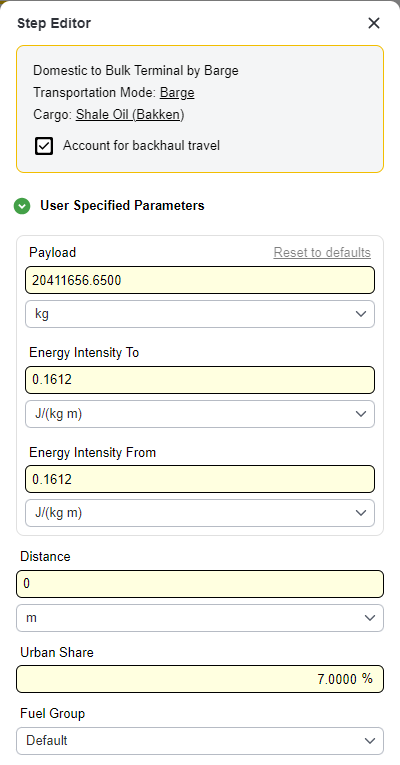
In this section you can modify:
- Payload
- Energy intensity To
- Energy intensity From
- Distance
- Urban share
- Fuel group
| Parameter | Meaning |
|---|---|
| Urban share | The fraction of the step's emissions that go to urban areas. |
| Fuel group | Choose one of the predefined fuel groups from the list. |
The parameters shown depend on the mode type. See Transportation Modes.
Warning
- If a mode lacks data such as energy intensities or payload for a cargo, define them in the step, or in the mode itself.
- Parameters you define in the step do not overwrite the mode. They are local overrides, and PyGREET uses them first in the calculation.
- When you define both energy intensity and payload in the step, PyGREET uses the energy intensity to determine the final consumption.
Equations
See Transportation Energy Intensity for how PyGREET computes the energy intensity from the payload and mode parameters for Barge, Tanker and Truck modes.
Losses
Enter the loss of material in the step in one of several configurations. PyGREET calculates the loss and shows it below your inputs as a preview.
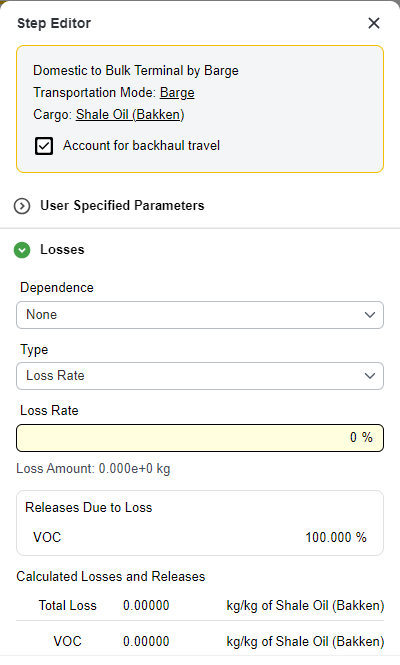
The Dependence setting decides which physical variable drives the loss of resource mass:
| Dependence | How PyGREET calculates the loss |
|---|---|
| Distance | A loss rate in %/m applies to the total distance of the leg. |
| Time | PyGREET first calculates the travel duration from the distance and the average speed of the mode. It then applies a loss rate in %/s to the total amount of resource transported over that duration. |
| None (constant) | With no physical dependency, the loss is a fixed ratio: a constant loss rate times the total amount of resource that enters the step. |
The Type setting defines the units and the way PyGREET applies the loss value:
| Type | Meaning |
|---|---|
| Amount | A specific quantity (for example, mass, mass/time or mass/distance) according to the dependence. Use it for fixed leakage or boil-off rates that do not depend on the size of the cargo. |
| Rate | A percentage (for example, %, %/time or %/distance). The loss scales with the amount of resource transported. It is the standard way to model diffuse fugitive emissions or spillage. |
Equations
See Transportation Step Losses for the formulas that convert between a loss rate and a loss amount for the mass-, distance- and time-dependent cases.
Validation
When you save a transportation process, PyGREET validates it. If a validation error occurs, it appears at the bottom of the screen, and you must resolve it before you can save.
