Work with Tabs
Use tabs to move between the entities you have open and between the windows of one entity. PyGREET has two sets of tabs: top tabs for entities and bottom tabs for the windows inside the current entity.
Switch Between Entities with the Top Tabs
The tabs at the top of the screen move between the entities you opened from the Library.

| Feature | How it works |
|---|---|
| Color coding | A tab is outlined in the color of its entity type in the Library (for example, red for a vehicle and orange for a transportation process). |
| Active tab | The active tab is filled in green. |
| Long names | If a name is cut off, hover over the tab to read the full name. |
| Closing a tab | Select the X icon on the right of the tab. If the entity has changes, a window asks whether to save or discard them before the tab closes. |
| Undo and redo | Every tab supports undo and redo with Ctrl+Z and Ctrl+Y. See Undo and Redo. |
Move Within an Entity with the Bottom Tabs
The tabs at the bottom of the screen open the different windows of the same entity. They differ by entity type.

All entities share these elements:
- Usage tab: shows where the entity is used throughout PyGREET.
- General Information tab: holds the entity name and its core properties.
- Save buttons, in the bottom tab area:
- Save: keeps your changes to the current entity.
- Save As New: saves your changes as a new entity. You must change the entity name first.
- Save as Draft (checkbox): marks the entity as a draft, to show you will revise it later.
- Active Dataset: shows the name of the dataset you are working in. It appears with Last Updated once the entity has been saved.
- Last Updated: shows when the entity was last updated.
Find Where an Entity Is Used
The Usage tab, at the bottom of most editors, shows where the current entity is used across the dataset. It is a table with direct dependencies and the dependencies nested under them.
If the entity is not used anywhere, the tab shows "No dependencies for this item."
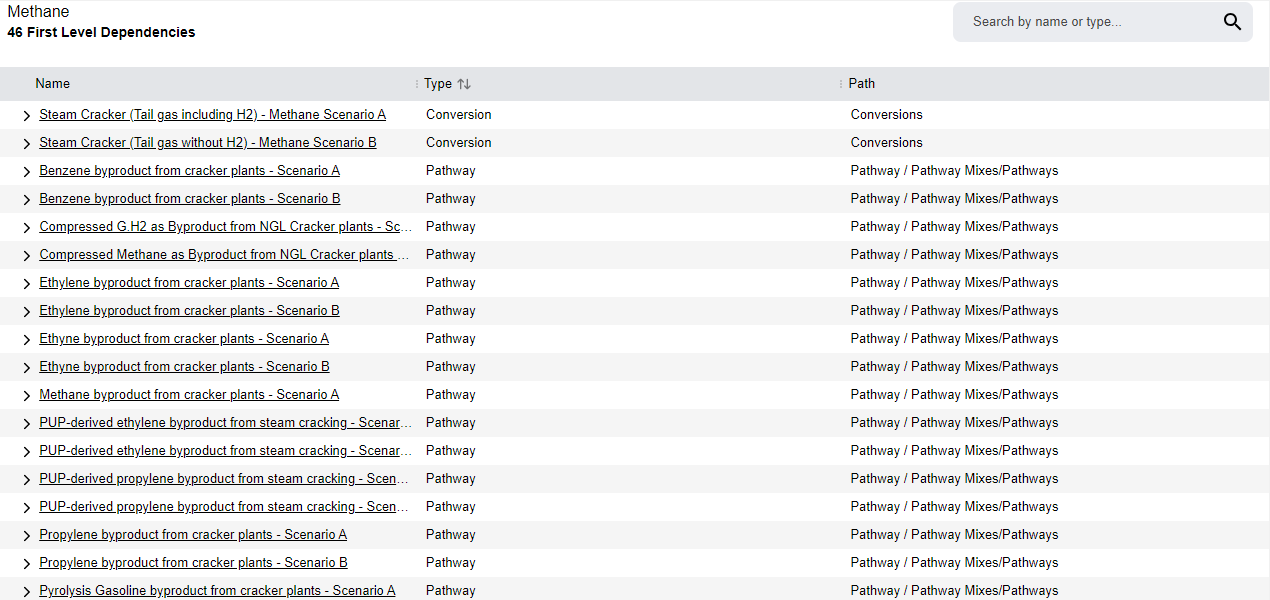
To work with a dependency:
- Select the entity name to open it in a new tab for editing.
- Select the caret (▸) to show the dependencies nested under it.