Flow Rule-Based Mapping
Overview
Write rules that find flows across the dataset and replace them with other flows. Each mapping has a name, notes and one or more rules that say how to match source flows and which target flows replace them.
The editor contains two tabs, listed at the bottom of the editor:
- General Information: set the mapping name, notes and rules.
- Mappings: review the results of the rules, and apply them.
To open the editor, select a mapping in the Flow Rule-Based Mapping folder of the Data Processing navigation panel, or select the + button of that folder to create a new one.
Note
You write the rules of a rule-based mapping. To let an AI-assisted service propose the replacements instead, see Flow AI-Assisted Mapping.
Workflow
- Select the + button of the Flow Rule-Based Mapping folder. A new mapping opens with a default name.
- Enter a Name and Notes in the General Information tab.
- Expand the Rules section and select its + button to add each rule. Fill in the columns of every rule.
- Select Save.
- Select the green Map button in the Rules header. PyGREET switches to the Mappings tab and lists every replacement the rules would make.
- Remove any row you do not want to apply.
- Select the green Apply Mapping button to apply the remaining rows to the dataset.
- Save the dataset with the Save button at the bottom of the navigation panel to keep the result. See Save or Discard Changes.
General Information
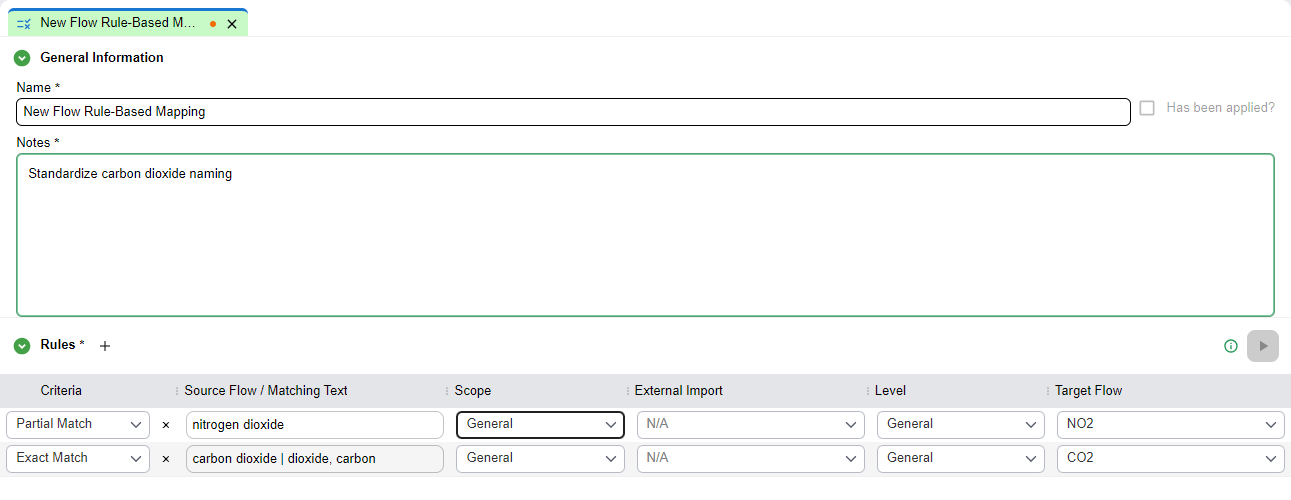
Name and Notes
- Name: a label for the rule set. You need a name to save the mapping.
- Notes: free text for the purpose or context of the mapping. Detailed notes are recommended.
Info
The Has been applied? checkbox shows whether the rule set has been applied to the dataset. It is read-only. PyGREET selects it after you apply the mapping. An applied mapping contains only the matches found when you applied it. It does not search for matches added to the dataset afterward.
Important
You cannot save an applied mapping again: the Save button is disabled. To reuse its rules, edit them and select Save as New, which creates a new mapping that has not been applied.
Rules
The Rules section holds the matching rules of the mapping. You need at least one rule to save the mapping. The section is collapsed for a new mapping, so select its header to expand it.
- Select the + button next to the section title to add a rule. New rules appear at the top of the table.
- Select the x next to a rule's Criteria to delete that rule.
- Hover over the i icon in the section header to read how to enter synonyms (see Synonyms).
Each rule consists of the following columns:
Criteria
Criteria sets how PyGREET identifies the source flow. The options are:
| Criteria | Description |
|---|---|
| Flow | Matches one flow that you select from the dataset in a list |
| Exact Match | Matches flows whose name is exactly equal to the source text |
| Partial Match | Matches flows whose name contains the source text as a substring |
Note
Exact Match and Partial Match do not distinguish between uppercase and lowercase letters.
Source Flow / Matching Text
The value used to identify flows to be replaced:
- When Criteria is Flow, this field is a list where you select one dataset flow.
- When Criteria is Exact Match or Partial Match, this is a free-text field for the text to search for.
- Until you select a criteria, the field shows Select criteria first.
Synonyms
When Exact Match or Partial Match is selected, several texts can be entered in the same field, separated by |. A flow matches the rule if it matches any of them. For example:
Scope
Scope sets how much of the dataset PyGREET searches:
| Scope | Description |
|---|---|
| General | Applies the rule across the entire dataset |
| Specific Import | Restricts the rule to a particular external import |
External Import
Select the external import to restrict the rule to. This field is enabled only when Scope is Specific Import.
Note
This field is disabled (shown as N/A) when Scope is General.
Level
Level restricts matching to one section of an editor. The options are:
| Level | Description |
|---|---|
| General | Applies across all levels |
| Main Outputs | Targets the main outputs section of a Stationary Process |
| Coproducts | Targets the coproducts section of a Stationary Process |
| Inputs | Targets the inputs section of a Stationary Process |
| Non-Combustion Emissions & Wastes | Targets the non-combustion emissions and wastes section of a Stationary Process |
| Impact Factors | Targets impact factors defined in the Impact Categories Editor |
Target Flow
The dataset flow that replaces every matched source flow. Select it from a list, and start typing to filter the list.
Note
When Criteria is Flow, the flow selected as the source is not offered in the Target Flow list.
Saving the Mapping

- Save keeps the mapping in the working copy of the dataset. It is enabled after an edit, and disabled if the mapping has been applied.
- Save as New keeps the current content as a new mapping, with Has been applied? cleared. It is enabled after an edit.
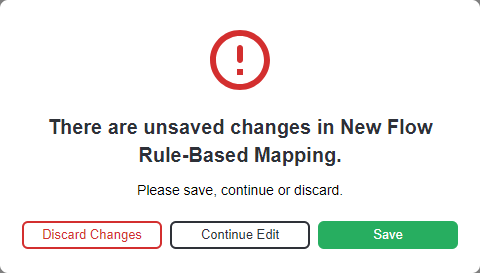
- An orange dot on the tab of the mapping marks unsaved changes. When you close the tab, this window opens:
Important
While a mapping has unsaved edits, the Map button and the Mappings tab are disabled. Save the mapping first. Selecting Map on a mapping that has never been saved shows the message Please save the flow mapping before executing mappings.
Mappings
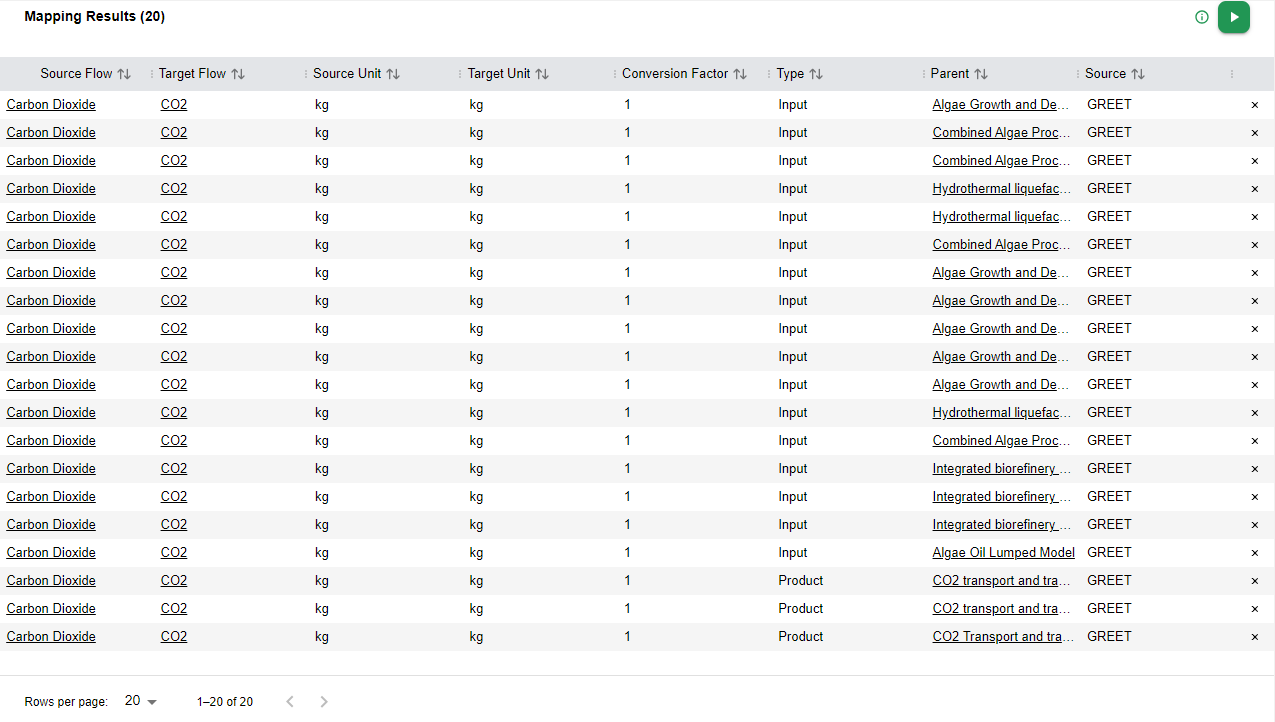
The Mappings tab lists the results of the rules: every match found and the replacement that PyGREET will apply (or has applied). It fills when you select the green Map button in the Rules header, and its title shows the number of results in parentheses, as in Mapping Results.
Before you run a mapping, the tab shows only the message No Mapping Results Yet.
The results appear in a table with these columns:
| Column | Description |
|---|---|
| Source Flow | The flow found in the dataset that matched a rule |
| Target Flow | The flow that replaces the matched source flow |
| Source Unit | The unit of the source flow |
| Target Unit | The unit of the target flow |
| Conversion Factor | The factor used to convert from the source unit to the target unit |
| Type | The level where the match was found (for example, Non-Combustion Emission & Wastes, Product, Input) |
| Parent | The entity in the library that contains the matched flow (for example, the process or technology name) |
| Source | The library or dataset that the parent entity belongs to (for example, GREET, U.S. Federal LCA Commons) |
Note
A unit or factor that does not apply is displayed as -.
Working with the table:
- Select a column title to sort by it.
- The Source Flow, Target Flow and Parent names are links. Select one to open that flow, process or impact category in the Library.
- The table is paginated. The number of rows per page can be 10, 15, 20, 30, 40 or 50, and defaults to 20.
- Select the x button at the right of a row to exclude that match from the mapping. PyGREET does not keep the removal: when you open the tab again, it lists all matches again.
Note
Apply Mapping skips the rows you removed from the table. It applies only the remaining rows.
Guardrails
When the table has results, select the i icon above the table to see the guardrails PyGREET applies when it replaces flows:
- Matches you removed are not applied.
- Inputs from wells are not replaced with non-elementary flows.
- Emissions and wastes are not replaced with non-elementary flows.
- Flow ID and Exact Match rules keep the source unit with a conversion factor of 1.
- Partial Match rules convert to the target flow's preferred unit.
- Substitutions where no unit conversion can be established between source and target are excluded.
Applying the Mapping
Select the green Apply Mapping button above the table to replace the listed flows in the dataset. When the replacement finishes, PyGREET reloads the library elements and shows the message Mapping applied and library elements reloaded successfully.
After a mapping is applied:
- Has been applied? is checked in the General Information tab.
- Apply Mapping is disabled and the x buttons disappear from the table.
- The dataset has unsaved changes. Select Save at the bottom of the navigation panel to keep them, or Discard to return to the last saved dataset.
Important
Applying a mapping rewrites flows in the working copy of the dataset. Review the results before you apply, and see Save or Discard Changes to understand how to keep or undo the change.