Stationary Processes
A stationary process models the onsite transformation of inputs into outputs within a production pathway. It holds the life cycle inventory of that step: its inputs, its main product and any coproducts, and the conversion technologies it uses. Together with transportation processes, stationary processes are the building blocks of pathways and pathway mixes.
Examples: refining a fuel precursor into a usable product, or producing a material.
The stationary process editor has two bottom tabs:
- General Information Tab
- Usage Tab
The Usage Tab is explained in Usage Tab.
General Information Tab
The General Information Tab has these sections, one for each part of a stationary process:
- General Information
- Main Output
- Inputs
- Input Groups
- Coproducts
- Non-Combustion Emissions & Wastes
- Carbon Relations
General Information
The General Information section holds:
- Name
- Urban share
- Country
- 4-Digit NAICS Code
- Notes

Urban Share
Urban Share is the fraction of the process's operation that takes place in a densely populated urban area. PyGREET uses it to determine the geographic distribution of emissions.
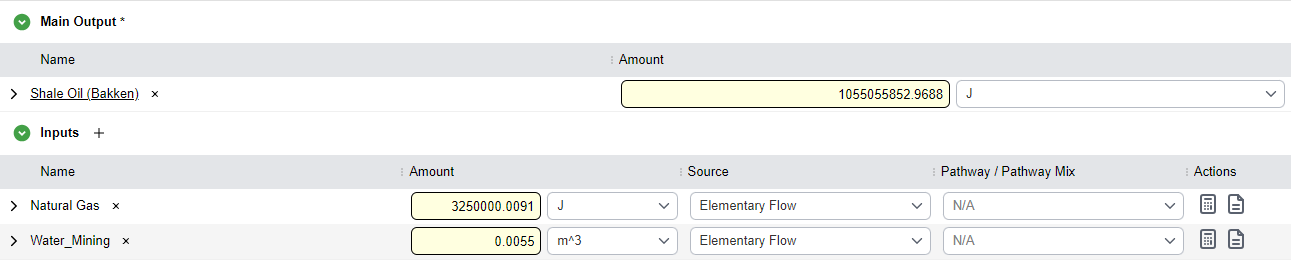
Main Output
The main output is the final desired product of the process.
Required
A stationary process must have exactly one main output.
The main output has these components:
- Amount
- Losses: select the caret on the left to expand. Enter a loss as an amount or as a rate (%). When you fill one, PyGREET fills the other with the equivalent value.
- Amount produced after losses
- Emissions produced by evaporation
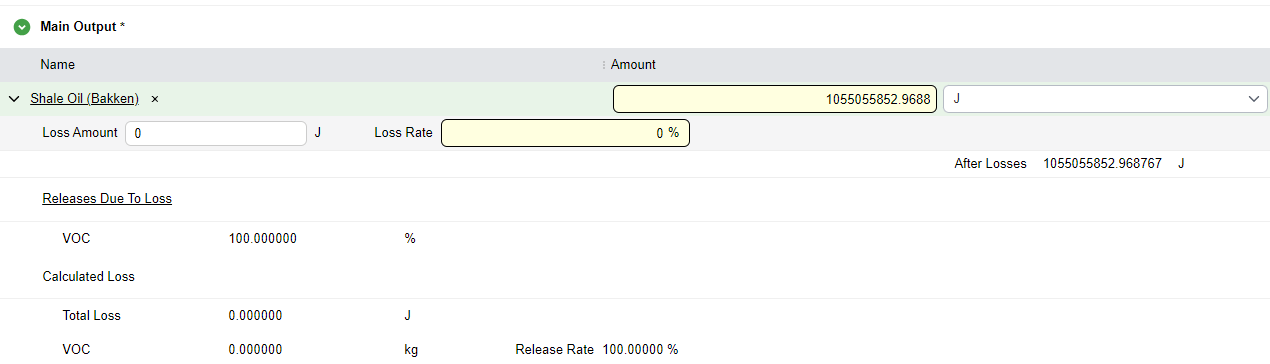
Emissions produced by evaporation
For the main output resource, PyGREET includes in the mass balance every emission declared in Releases due to Loss on the flow. The values appear as calculated losses and are part of the pathway results.
Inputs
Inputs are the resources the process needs to make the specified amount of main output, and of coproducts if there are any.
Add an Input
- Hover over the Inputs title.
- Select the
+icon. - Search for a resource.
- Select the resource to add it as an input.
Each input has these components:
- Amount
- Source of the input
- Source pathway or pathway mix, when the source is one of those
- Conversions the input uses
- Emission ratios
Source
The Source is the upstream supply chain that produces the resource used as an input. The default is "Output of Previous Process". The pathway then defines the upstream connection, not the stationary process. This lets you reuse one process in several pathways, each with its own sources.
Single Pathway and Pathway Mix
The sources Single Pathway and Pathway Mix are available only when at least one pathway or pathway mix exists. You can use a pathway or mix whose main output is a compatible resource, as set in Compatible Resources. For example, a pathway or mix whose main output is Conventional Diesel can supply Diesel for Non-Road Applications. This saves you from building duplicate pathways and connections.
Internal Product
A resource is an internal product when the process generates it inside its boundary and does not sell it. It is an intermediate flow that the process uses onsite.
Add a Conversion
- Select the caret next to the input name.
- Select the
+icon next to the conversion label. - Set the conversion's Share as a percentage of the input.
- Select Accounted in Balance if the carbon balance includes the conversion.

Accounted in Balance
If Accounted in Balance is selected, the emissions of this conversion are part of the process emissions. If it is cleared, the calculations do not use the technology.
Negative share
A negative conversion share inverts the sign of the conversion's emission factors. For example, a natural gas boiler has a CO2 emission factor of 5.500e-8 kg/J. With a share of -100%, the calculation uses -5.500e-8 kg/J.
Add Emission Ratios
Emission ratios give emissions that do not come from a conversion. For example, nitrogen used as a fertilizer vaporizes into some gases.
- Select the calculator icon in the actions column of an input.
- A side panel opens.
- Add one or more emissions the input produces.
- Enter the ratio of production for each.
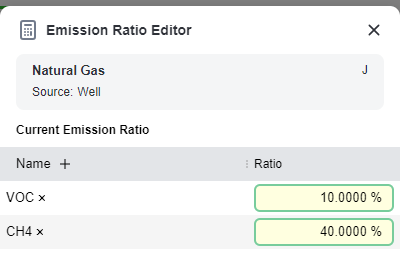
Warning
The percentages you enter are mass-emission ratios. Define the physical properties of the input resource fully, so that PyGREET can convert it to a mass basis. If it cannot, the ratio emissions for that input are 0.
Input Groups
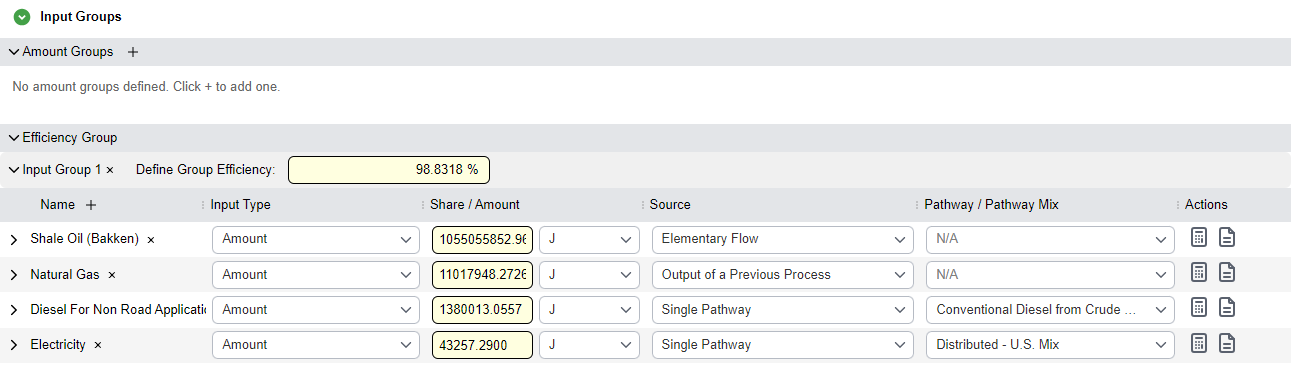
An input group holds several inputs that together make one total. You give the group an overall amount or efficiency. For example, you can define electricity from several sources as percentage shares of one total energy amount.
There are two types of input group:
| Type | What you enter | How many per process |
|---|---|---|
| Efficiency Group | The overall group efficiency, as a percentage | One at most |
| Amount Groups | The overall group amount, as a number with a unit | Several |
An input within a group is either a share of the group or an amount. All other features of inputs in a group are the same as for regular inputs.
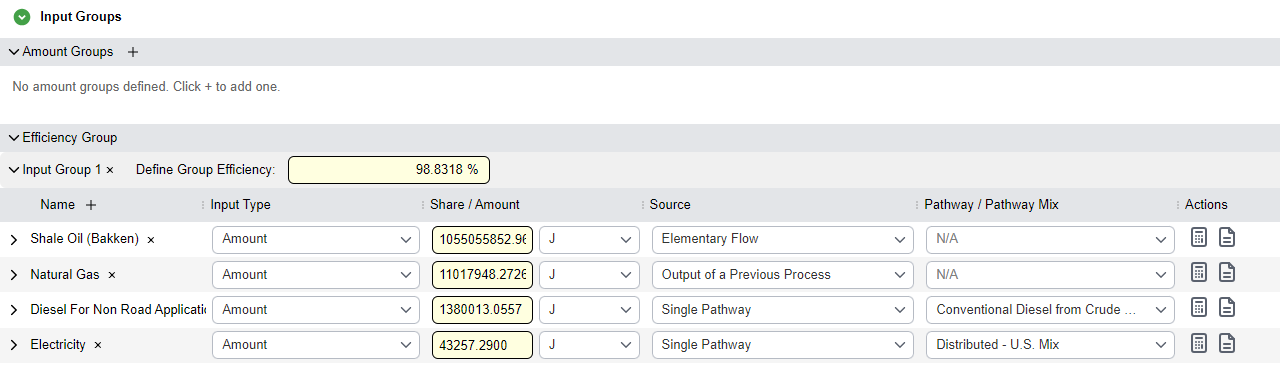
Required
The inputs within an input group must convert between dimensions. If they cannot, PyGREET raises an error.
Input groups give the same mass-balance results as standard input declarations, with extra analytical information. An efficiency group expresses inputs relative to the amount needed to make one unit of primary output. This shows the material use efficiency of the process. An amount group defines a total supply and distributes it among materials. This suits cases where you know the total energy requirement but must adjust the mix of carriers, such as a flexible mix of fuel sources.

Equations
See Input Group Shares for how PyGREET computes the group amount for each group type and distributes it among the inputs.
Coproducts
Coproducts are the additional outputs of a stationary process.
Add a Coproduct
- Select the
+icon next to the Coproducts title. - Search for a resource and press Enter to add it.
- Enter the amount and the unit of the output.
Choose a Treatment Method
Set how PyGREET handles the coproduct by selecting the Allocation or Displacement label. Select the text of the label to open the displacement panel.

Displacement
Displacement (system expansion) credits the coproduct for the products it displaces. Selecting the label opens a side panel where you enter the displaced products.
- Select the
+icon next to the Resources header in the table. - Select the source to displace from, in the list under the source column.
- Enter the displacement ratio in the ratio column.
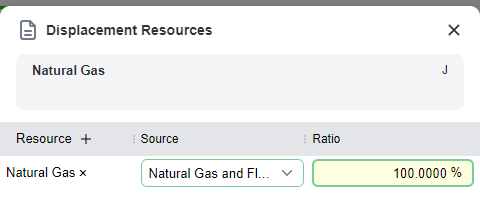
With displacement, you must define the displaced materials and their upstream. In the figure above, Renewable Natural Gas displaces the pathway "NNA NG for use on FT plants" for Natural Gas.
Allocation
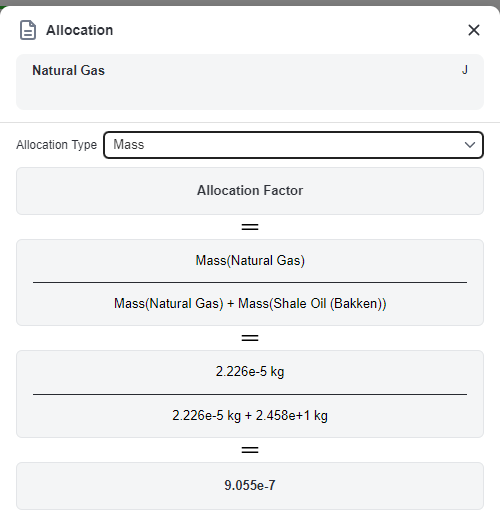
Allocation shares the burdens of the process among the main output and the coproducts. Selecting the label opens a side panel where you choose the allocation type. The types, in this order, are:
- No Allocation
- Mass
- Energy
- Causal
- Market
Mass, Energy, and Market Allocation
The allocation types you can use depend on the physical properties available for all the output materials. When you choose a valid type, PyGREET calculates and shows the allocation.
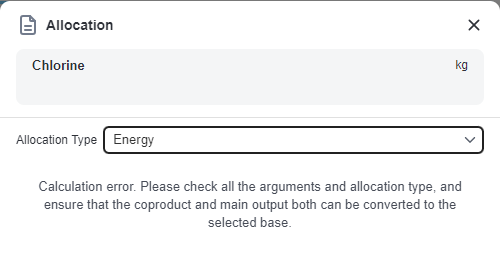
Calculation error
An allocation type is invalid when the main output and a coproduct do not share the required properties. For example, energy allocation fails when the main output or a coproduct is in mass units and has no heating value. PyGREET then shows a calculation error. Choosing a type that is not valid for a product also opens a window titled "Data integrity issue", for example "ENERGY cannot be used with Chlorine...".
Causal Allocation
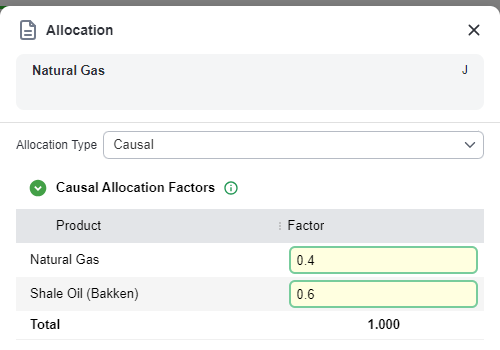
For causal allocation, you enter the allocation factor of each coproduct and of the main output. The factors must add up to 1.000, as the total at the bottom of the table shows.
Non-Combustion Emissions & Wastes
This section holds the residual, fugitive or secondary releases of the process that no conversion captures. A conversion models intended processing, such as a combustion reaction or a chemical transformation. This section covers the unintended or auxiliary releases inside the facility boundary.
Add an Emission
- Hover over the Non-Combustion Emissions header and select the
+icon. - Enter an amount for each emission added to the table. The amount is for the whole process.

Carbon Relations
Carbon relations define mass-based weights that link inputs to outputs. Each weight gives the "chemical" contribution of an input to the primary output. For example, an ethanol plant uses several resources, but ethanol comes from the fermentation of corn. Natural gas and electricity only provide heat and power. You therefore define a 1:1 ratio between the ethanol output and the corn feedstock.
This setting is critical for biogenic credits. When the ethanol is later burned, the model traces its carbon back to the biomass feedstock. The CO2 emitted in combustion is then biogenic carbon, and it appears as a negative value, or credit, in the process results.
The table has one row for each output and one column for each input.
Equations
Carbon relations are the edge weights that carry biogenic carbon through the supply chain. See Biogenic CO₂ from Combustion for how the carried biogenic carbon becomes a biogenic CO₂ credit when the fuel is burned.

When You Can Edit a Cell
A cell is editable when one of these is true:
- The input is a primary resource and has a biogenic carbon content.
- The input comes from a previous output, a source pathway or a mix, and is not an energy input.
The output flow must also not be an energy flow.
Select Estimate to have PyGREET calculate the table from the carbon content and mass of the inputs and outputs.
Equations
See Default Carbon Relations Matrix for how PyGREET computes the table from the carbon mass of each input and output stream when you select Estimate.