Data Processing
The Data Processing area groups tools that change the active dataset in bulk. Instead of editing flows one by one in the Library, you describe a set of replacements, review the entities they would affect, and apply the replacements only when you confirm.
Data processing items are organized in folders, one folder per type of item. Two types are available:
| Item type | Purpose |
|---|---|
| Flow Rule-Based Mapping | You write the matching rules. See Flow Rule-Based Mapping. |
| Flow AI-Assisted Mapping | An AI-assisted service proposes the replacements for the flows of one or more external imports. See Flow AI-Assisted Mapping. |
Open Data Processing
Select the Data Processing icon in the left-side navigation bar. It is the database icon with a small gear, between Library and Settings. The page has two panels:
- The navigation panel on the left lists the folders and the items saved in the active dataset.
- The editor panel on the right shows the open items as tabs. It is empty when nothing is open.
Drag the divider between the panels to resize them. Select the < button at the top of the navigation panel to close it.
The Navigation Panel
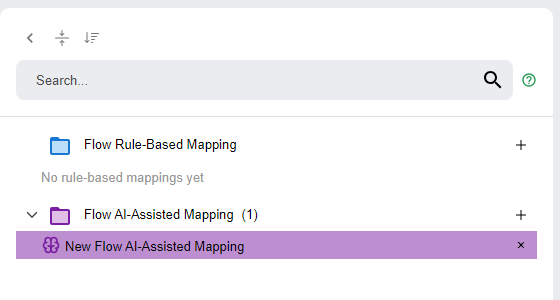
Each type of item has its own folder. The number next to a folder name is the number of items in it. An expanded folder with no items shows No rule-based mappings yet or No AI-assisted mappings yet.
Toolbar
The toolbar at the top of the navigation panel has three controls:
- Close panel (<): hides the navigation panel.
- Expand all / Collapse all: expands or collapses every folder. The icon and tooltip change with the current state.
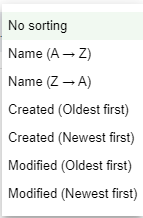
- Sort: orders the items inside each folder. The options are No sorting, Name (A to Z), Name (Z to A), Created (Oldest first), Created (Newest first), Modified (Oldest first) and Modified (Newest first).
Create, Open and Delete Items
- Select the + button at the right of a folder to create an item of that type. The item opens in the editor panel with a default name. PyGREET adds it to the dataset only when you save it.
- Select an item to open it in the editor panel. The selected item is highlighted in the color of its folder. Hover over a name longer than 16 characters to see the full name.
- Select the delete icon at the right of an item to delete it. Deleting an item you have never saved removes it from the list.
Search
Type in the search box to filter items by name across all folders. PyGREET expands the folders that contain a match.
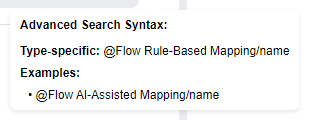
To search inside one folder, type @, the folder name, a slash and the text to look for. You can type any part of the folder name. For example:
@Flow Rule-Based Mapping/carbonlists the rule-based mappings whose names contain carbon.@Flow Rule-Based Mappingshows only the matching folder.
Select the ? icon next to the search box to see the advanced search syntax. The tooltip gives examples for the Data Processing folders.
The Item Editor
Items you open from the navigation panel appear as tabs above the editor. Drag the tabs to reorder them. An orange dot on a tab marks unsaved changes. When you close a tab with unsaved changes, PyGREET asks you to choose Discard Changes, Continue Edit or Save. Closing a new item you have not edited removes it without asking.
The bottom of the editor shows:
- The Save as New and Save buttons, which act on the open item.
- The name of the active dataset and the time of the last update.
- The tabs of the editor, for example General Information and Mappings.

Important
Save keeps the item in the working copy of the dataset. As with any other edit, it becomes permanent only when you save the dataset with the Save button at the bottom of the navigation panel. See Save or Discard Changes.