Dashboard and Datasets
Use the dashboard to create, open, copy and export your datasets. A dataset is the set of flows, processes, pathways and other entities you work with in PyGREET. The dashboard also links to the feedback survey and the openLCA interoperability website.
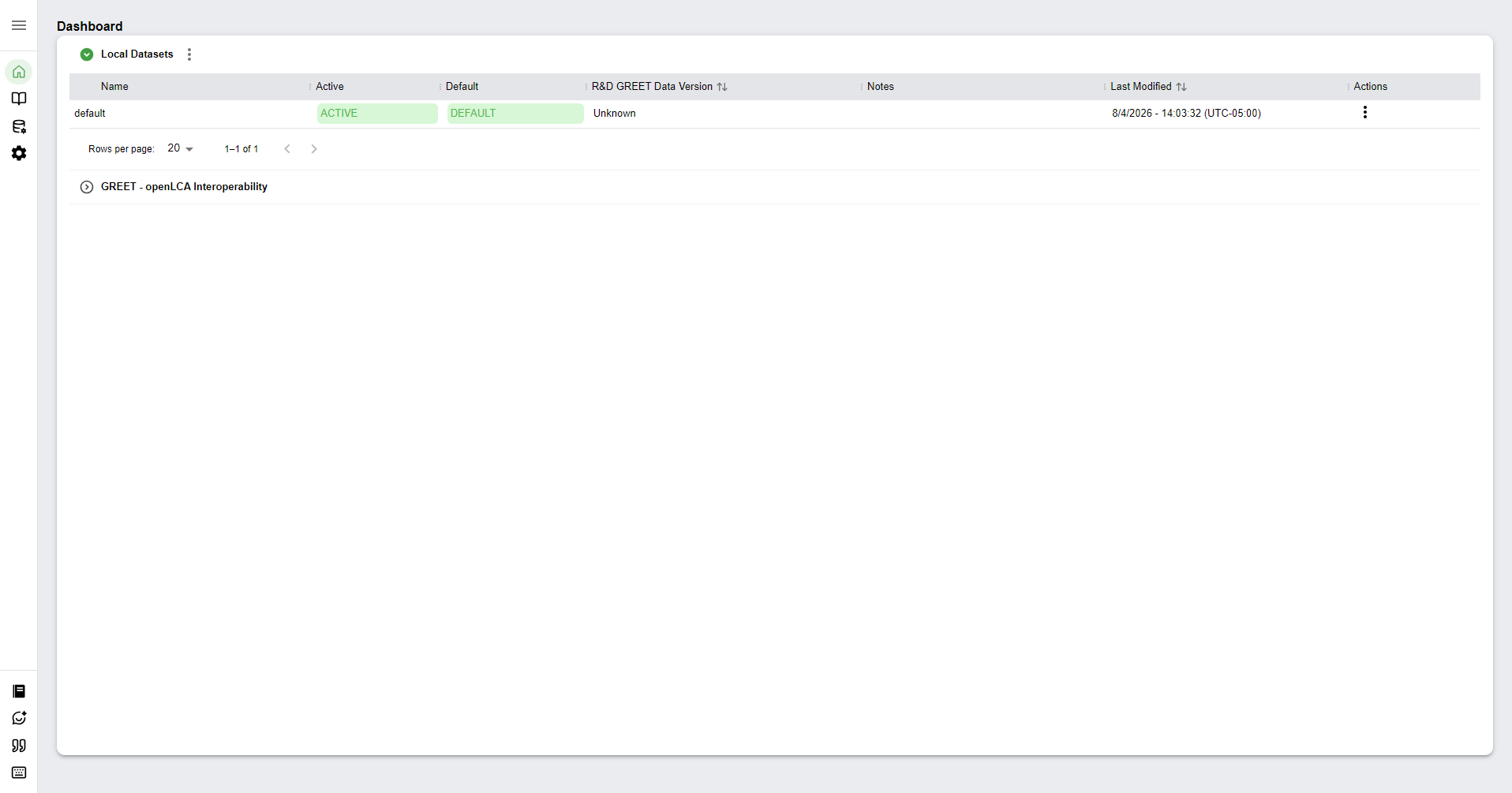
Read the Local Datasets Table
The Local Datasets table lists every dataset on your computer. Its columns are:
| Column | What it shows |
|---|---|
| Name | The dataset name, which you set |
| Active | Highlights the dataset PyGREET currently has loaded |
| Default | Marks the built-in reference dataset shipped with PyGREET |
| R&D GREET Data Version | The version of the R&D GREET data the dataset holds, or Unknown when the dataset has none recorded |
| Notes | A note, which you set |
| Last Modified | The date and time of the last change, which PyGREET records |

Create a New Dataset
- Select the triple-dot icon next to the Local Datasets heading, at the top left of the table.
- Choose how to create the dataset.
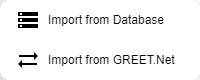
| Option | What it does |
|---|---|
| Import from Database | Creates a dataset from an existing PyGREET .sqlite3 file |
| Import from GREET.Net | Creates a dataset from data in a GREET.Net file |
Import from GREET.Net
If you run LCA projects on the R&D GREET .NET platform, use this option to move your data from GREET.Net to PyGREET.
Manage a Dataset
Each row of the Local Datasets table has a triple-dot Actions menu at the far right. The options depend on whether the dataset is active.
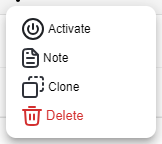
- Activate: sets this dataset as the one PyGREET loads
- Note: adds or edits a note for the dataset
- Clone: makes an identical copy of the dataset
- Delete: permanently removes this dataset
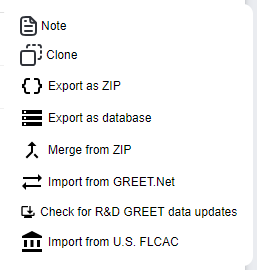
- Note: adds or edits a note for the dataset
- Clone: makes an identical copy of the dataset
- Export as ZIP: exports the dataset to a portable ZIP package
- Export as database: exports the dataset as a
.sqlite3file - Merge from ZIP: merges data from a ZIP package into the active dataset (see Choose a Merge Strategy)
- Import from GREET.Net: imports data from a GREET.Net file into the active dataset (see Choose a Merge Strategy)
- Check for R&D GREET data updates: checks whether a newer version of the R&D GREET data is available for the active dataset and offers to merge it in. The merge stays temporary until you save
- Import from U.S. FLCAC: imports data from the U.S. Federal LCA Commons into the active dataset
Rename a Dataset or Change Its Note
- To rename the dataset, double-click its name in the table row and type the new name.
- To change the note, select the triple-dot icon in the Actions column, then select Note.
Choose a Merge Strategy
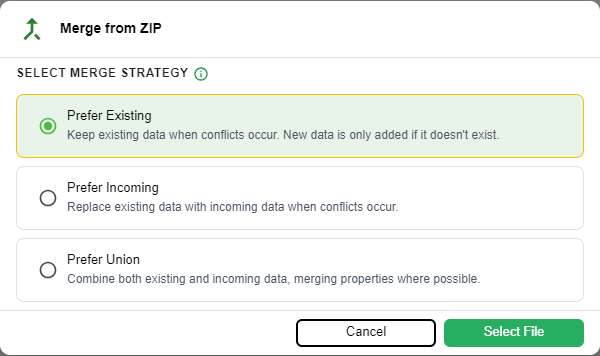
When you select Merge from ZIP or Import from GREET.Net, a merge strategy window opens before you pick the source. Its title matches the menu item you chose. The same window also opens when you merge an R&D GREET data update.
- Under Select merge strategy, choose Prefer Existing, Prefer Incoming or Prefer Union.
- Select Select File, then choose the file that holds the data to import.
Best Practices
The PyGREET team recommends these practices for ease of use, clear data and accurate calculations.
| Best practice | Why |
|---|---|
| Clone the default dataset before you start, and activate the clone to work in | The clone gives you a backup to return to if you save changes you do not want. |
| Check that the units in a formula are consistent with the local parameters it uses | This avoids mathematical errors, such as adding two inconsistent bases (for example, an input amount = 1 kg + 1 m). |
| Avoid negative values for conversion shares | They are technically allowed, but they confuse the data and make no scientific sense. |
| Use Input Groups only when necessary | Input groups are an advanced feature that other users may find hard to work with once saved. Add most inputs as standard inputs. |
| Check that a flow can be converted to the unit you need | For example, a flow in a solid state with volume units needs the physical properties to convert between mass and volume. |
| Add notes that document every value and entity you add | Notes let others see the scientific source of your data when they expand or edit it later. |
| Rename Local Parameters to names specific to your use case | Default names can confuse other users. |
| Review every entity before you save it | A save is hard to undo and can cascade to many other entities, so check your changes more than once. |
| Document in the pathway notes why you use an auxiliary process in a pathway | Documenting what you change or add lets others understand your work later. |
| Check the Usage tab before you delete an entity | PyGREET reports connections and blocks deleting a connected entity, but you should still read the Usage tab to find where the entity is used and detach it first. |
| Check that the allocation method you select works for the coproducts you add | Allocation methods can depend on the physical properties of flows. Check the math in the allocation window before you save. |
| Check the displaced products | Selecting displacement for a coproduct requires you to add the displaced products. Make sure you complete that step. |
| Fill out the carbon relations in the Stationary Process editor completely and accurately | Biogenic carbon tracking needs carbon relations to give accurate results. |
| Define vehicle lifetime VMT, payload, passengers and, if needed, electric range, especially when you add materials to the vehicle cycle model | Vehicle materials need the lifetime VMT for the calculations to work. The other properties make the calculations more accurate. |
| Check that shares add up to 100% where they apply | This covers input shares, conversion shares, pathway mix shares, elemental compositions, transportation steps and more. Some places do not require 100% mathematically, but complete data is best scientific practice. |
| Before you swap an input in a process that pathways already use, check that no connection in those pathways breaks (including non-standard pathways with vehicles) | Inputs with the source "Output of a previous process" need a connection on the pathway canvas. Changing the input source can disconnect pathways that use the process. |
| Read labels that carry extra information | A label marked with an asterisk (*) shows more information when you hover over it. That information explains the data an editor needs and good practice. |