Save or Discard Changes
PyGREET keeps every dataset in two forms: the saved version, which is the last state you saved, and a working copy, which receives your edits as you make them. Your edits stay in the working copy until you select Save. Discard restores the working copy from the saved version.
This separation gives you a sandbox for LCA experiments. You can substitute inputs, adjust parameters, restructure a pathway and recalculate results many times without changing the saved dataset. You test a hypothesis in the working copy and make a change permanent only when you accept it.
Find the Save and Discard Buttons
The Save and Discard buttons are at the bottom of the Library. They act on the whole active dataset, not on one entity.
When the working copy is identical to the saved version, there is nothing to save and nothing to restore. Both buttons are inactive.
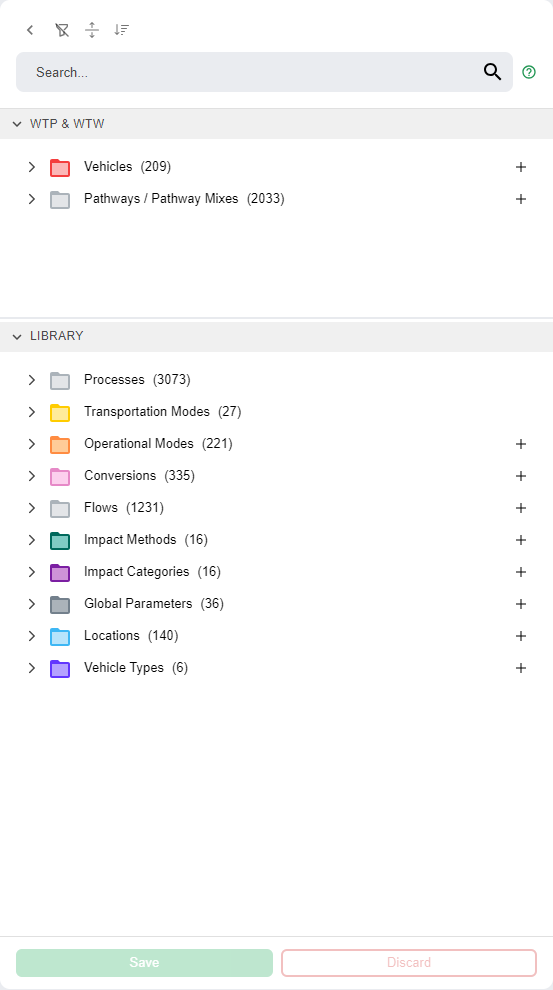
When an edit makes the working copy differ from the saved version, both buttons become active. In the example below, you added a vehicle, so the Vehicles count rises from 209 to 210 and the buttons are active.
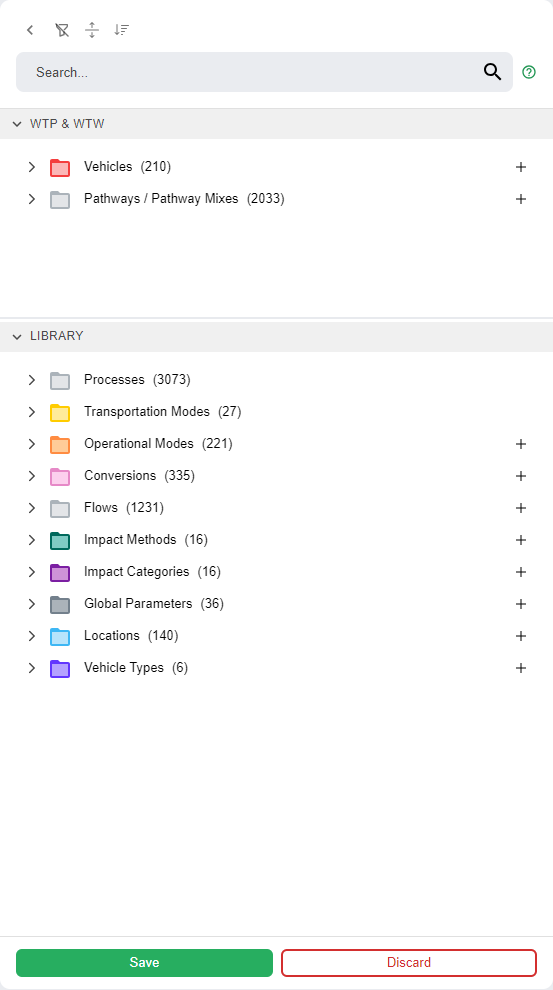
The buttons always show whether the working copy differs from the saved version.
Save Your Changes
- Review your results and confirm that you accept them.
- Select Save at the bottom of the Library.
Save writes the entire working copy to the saved version of the dataset. Then:
- The saved version includes all your edits.
- The dataset is synchronized, and Save and Discard are inactive until your next edit.
Discard Your Changes
- Select Discard at the bottom of the Library.
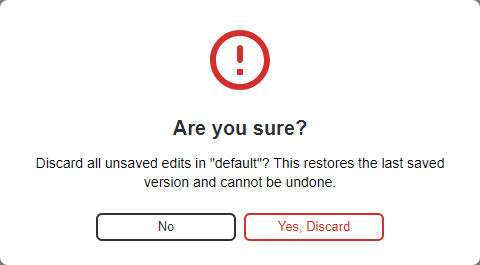
- In the confirmation window, select Yes, Discard.
Discard removes all unsaved edits and restores the dataset to its last saved version. Discarding cannot be undone, so PyGREET asks you to confirm.
Warning
Yes, Discard permanently removes every edit you made since the last save. Select No to close the window, keep your unsaved edits and continue working or save them.
Discard when an experimental configuration does not give the results you want and you want to start again from a saved state.
Undo, Redo and Discard
Saving and discarding work with undo and redo. Together they let you reverse changes at two scopes.
| Mechanism | Scope | Granularity | Typical use |
|---|---|---|---|
| Undo / Redo | One open editor or panel | One logical edit at a time | Stepping backward or forward through individual changes while you build an entity |
| Discard | The active dataset as a whole | All unsaved edits at once | Restoring an entire experiment to the last saved version |
Use them in sequence. Undo and redo give you fine control while you build one entity, before its changes go into the working copy of the dataset. After you save an entity, undo and redo no longer apply to those changes, because each save clears the edit history of its editor. From then on, Discard returns the dataset to an earlier state. It restores all working-copy changes in one step, so you do not reverse each entity one by one.
In practice, you refine an entity with undo and redo, save it, and repeat for each entity in your experiment. The accumulated changes stay in the working copy. You then keep all of them with Save or remove all of them with Discard.
Experiment with Pathways
The working copy supports iterative LCA work:
- Isolated changes: your edits to pathways, parameters, conversions and processes, and the recalculated results, stay in the working copy until you save.
- One-step return to a known state: if a configuration does not work, Discard restores the whole dataset to its last saved version in one step, instead of reversing edits entity by entity.
- Deliberate saving: when the results meet your criteria, one Save records the whole experiment.
- Clear state: the buttons show at all times whether the dataset holds unsaved changes.
Tip
For extra safety during long experiments, clone a dataset and work on the clone. You then have an independent backup, and you can still discard unsaved edits in the clone. See Dashboard for cloning a dataset.