Conversions
A conversion describes the emissions released when a resource is combusted in a boiler, engine or turbine. You define the emission factors per unit of the input resource, by species and year.
A conversion has two parts:
- Associated Resource: the input resource the conversion applies to (for example, Natural Gas or Residual Oil).
- Emissions Table: emission factors organized by species and year.
You enter emissions as time series per functional unit of the input resource, for example grams of pollutant per joule of natural gas. Where no time series exists, PyGREET uses the default value.
Note
In the GREET.net legacy platform, conversions were called technologies. Keep this in mind when you migrate datasets or read older documentation.
The conversion has two bottom tabs:
- General Information
- Usage: works as described in Work with Tabs.
Set the General Information
The General Information tab has a top section and the emissions table.
- In the top section, enter the Name and Notes.
- Choose the resource the conversion applies to.
- Choose the dimensionality in which you express the emission factors.
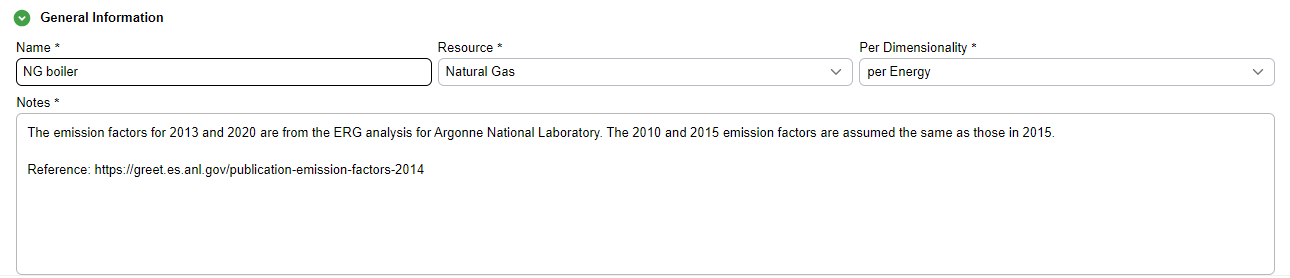
Resource and dimensionality
Every conversion must have a resource. Choose the dimensionality with care: some dimensionalities cannot be converted into others, and a wrong choice causes calculation errors.
Fill the Emissions Table
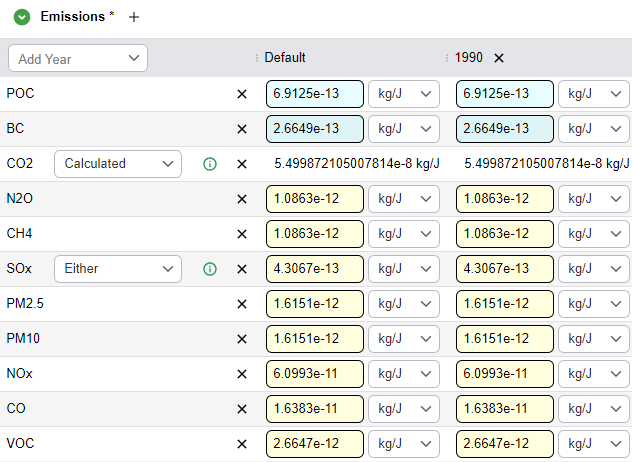
The emissions table holds the conversion's inventory data. Each row is an emission and each column is a year.
Every table has a default column. PyGREET uses it for emissions that have no time series.
- To add an emission, hover over the Emissions subsection title and select the
+icon. - To add a year, choose it from the Add Year list in the leftmost column. To remove a year, select the X on its column header. The default column cannot be removed.
- Enter the emission factors in the cells.
Note
The table itself holds the time series, so the formula editor does not show a time series table for emissions cells.
CO2 and SOx Emissions
You can enter CO2 and SOx emissions manually, have PyGREET calculate them, or combine the two. Choose the method in the list in the leftmost column of the row. Hover over the information icon to see how the calculation works.
If an emission is calculated, the table shows the calculated value and you cannot edit the cell.
How Conversions Are Applied
PyGREET applies a conversion whenever a resource is combusted, most commonly in the inputs of a stationary process or in a transportation mode (for example, locomotive engines or ocean tankers).
You can define factors manually, and PyGREET often calculates CO2 and SOx for you. It uses the carbon and sulfur ratios of the input resource and of the resulting emissions to conserve mass.
Equations
See Carbon and Sulfur Balances for the formulas that estimate CO2 and SOx emission factors from fuel composition. See Biogenic CO₂ from Combustion for how PyGREET estimates biogenic CO₂ when a biogenic fuel is combusted and the conversion does not already declare a CO₂ biogenic factor.