Flow AI-Assisted Mapping
Overview
Let PyGREET propose replacements for the flows that came into the dataset through one or more external imports. For each flow of the selected imports, an AI-assisted semantic mapping service searches the flows of the dataset for a match, scores its own suggestion and returns the result. You review it, remove what you do not want and apply the rest.
Unlike a Flow Rule-Based Mapping, you do not write matching rules. You choose the imports and an acceptance threshold, and you review what the service suggests.
The editor contains four tabs, listed at the bottom of the editor:
- General Information: set the name, notes, acceptance threshold and the external imports.
- Flows: see which flows belong to the selected imports.
- Semantic Search: run the service, follow its progress and review its suggestions.
- Mapping: review the replacements that result from the suggestions, and apply them.
To open the editor, select an item in the Flow AI-Assisted Mapping folder of the Data Processing navigation panel, or select the + button of that folder to create a new one. Items of this type use a purple icon.
Prerequisites
Before a semantic search can run:
- At least one external import must exist in the dataset, because the mapping is defined over the flows of the imports it selects. You choose the imports in the External Imports section.
- A Personal Access Token for the GREET AI-assisted semantic flow mapping service must be configured.
- An OpenAI API key must be configured. Semantic Search is unavailable until a key exists.
- Your computer must be able to reach the mapping service, because that service performs the search.
You enter both credentials in Settings, in the Flow Mapping Settings section:

The example fields hold illustrative values only. The token and the key are masked as you type them.
| Field | Description |
|---|---|
| Personal Access Token | Token for authentication with the Flow Mapping Service API |
| OpenAI API Key | Your own OpenAI-compatible API key. It authorizes both the mapping model calls and the query-time embedding calls made on your behalf. Clear the field and save to remove it |
| OpenAI Base URL | Optional. Set it only when you use an OpenAI-compatible provider at a different endpoint. Leave it empty to use the OpenAI default |
The section also has a Test Connection button, a Reset button that reloads the stored values and a Save button. The settings window states that credentials are stored only on your machine.
Note
If you request a semantic search while no OpenAI API key is configured, PyGREET shows the message An OpenAI API key is required to run Semantic Search. Configure one under Settings > Flow Mapping Settings.
Workflow
- Select the + button of the Flow AI-Assisted Mapping folder. A new mapping opens with a default name.
- Enter a Name and Notes, and set the Acceptance Threshold.
- Expand the External Imports section, select its + button and choose the imports to map. Repeat for each import.
- Select Save.
- Optionally, open the Flows tab to check which flows will be mapped.
- Select the green Semantic Search button in the External Imports header. PyGREET switches to the Semantic Search tab and shows the progress.
- When the search finishes, review the results. Remove the rows you do not want to use, and give feedback on individual rows if you wish.
- Select the green Map button above the results table. PyGREET switches to the Mapping tab.
- Review the replacements and remove any you do not want to apply.
- Select the green Apply Mapping button.
- Save the dataset with the Save button at the bottom of the navigation panel to keep the result. See Save or Discard Changes.
General Information
The example on this page maps the flows of a small external life cycle inventory, a U.S. LCI ethanol production subset and a corn farming subset, onto the flows of the dataset. The figures in the images are illustrative.
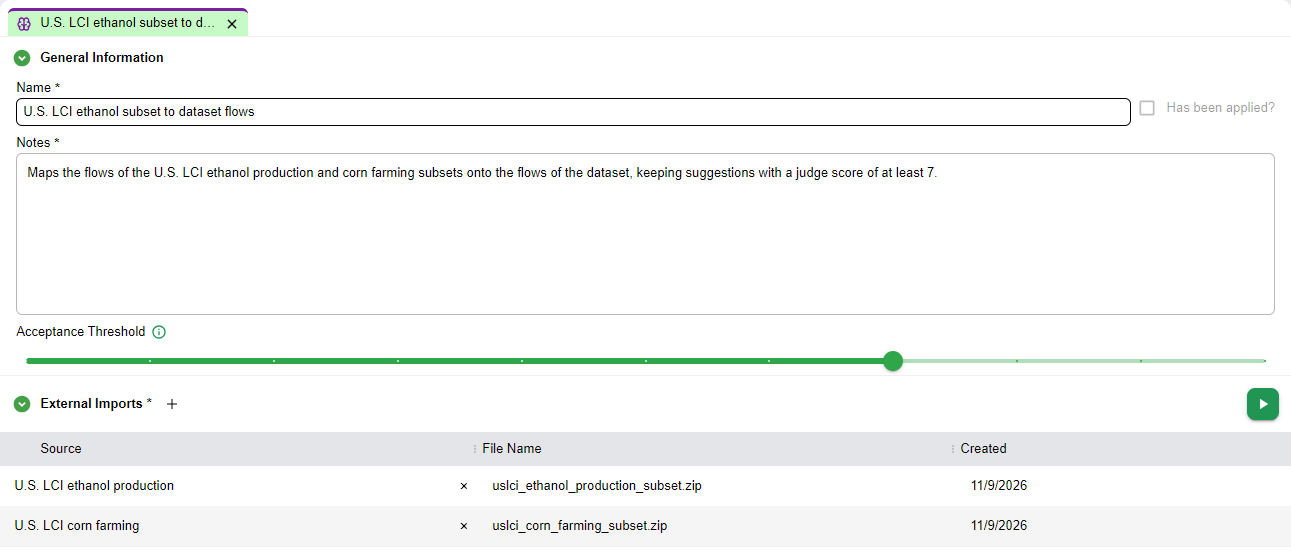
Name, Notes and Applied Status
- Name: a label for the mapping. You need a name to save it.
- Notes: free text for the purpose or context of the mapping.
- Has been applied?: a read-only checkbox. PyGREET selects it once you apply the mapping.
Acceptance Threshold
The Acceptance Threshold slider ranges from 0 to 10 and defaults to 7. Hover over the i icon to read its description.

The threshold is the minimum judge score required to accept a suggestion. In the Semantic Search tab, rows whose judge score is below the threshold, or that have no judge score, are highlighted in light red. PyGREET does not carry these rows into the replacements shown in the Mapping tab.
External Imports
The External Imports section lists the imports whose flows are mapped. You need at least one import before you can save the mapping.
- Select the + button next to the section title to add a row, then choose an import in the Source list.
- You can select each import only once. PyGREET does not offer imports already in the table again.
- Once you choose an import, the row shows its Source, File Name and Created date. Select the source text to choose a different import.
- Select the x at the right of the Source cell to remove a row.
- When you have added no import, the section shows No imports selected. Click the + button to add an import.
The green Semantic Search button at the right of the section header starts the search. It is disabled while the mapping has unsaved edits or after you have applied it.
Note
While the mapping has unsaved edits, the Flows and Semantic Search tabs are disabled. Save the mapping first. Selecting the Semantic Search button on a mapping that has never been saved shows the message Please save the flow mapping before running the semantic search.
Saving the Mapping
Save stores the mapping in the working copy of the dataset. Save as New stores a copy of the current content as a new mapping that has not been applied. Save is disabled for an applied mapping. An orange dot on the tab of the mapping indicates unsaved changes. When you close the tab, PyGREET asks you to choose Discard Changes, Continue Edit or Save, as described for the Flow Rule-Based Mapping.
Flows
The Flows tab lists the flows that belong to the selected imports. It is a reference view: you cannot edit anything in it.
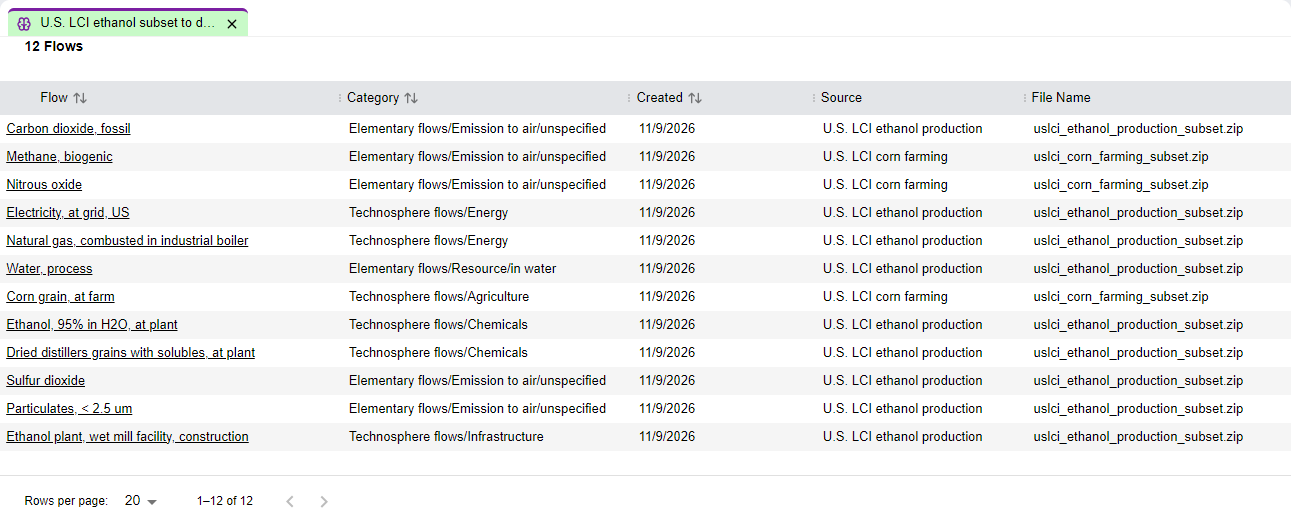
The title shows the number of flows, followed by Flows. The table has the following columns:
| Column | Description |
|---|---|
| Flow | The name of the flow. Selecting it opens the flow in the Library |
| Category | The category of the flow |
| Created | The date the flow was created |
| Source | The source of the import the flow belongs to |
| File Name | The file of the import the flow belongs to |
Select the title of the Flow, Category or Created column to sort by it. The table is paginated: 10, 20, 50 or 100 rows per page, 20 by default.
Two messages explain an empty table: No imports selected when the mapping has no imports, and No flows found when the selected imports have no associated flows.
Semantic Search
The Semantic Search tab runs the AI-assisted service and shows what it suggests. Only the green Semantic Search button of the General Information tab starts a search. Opening the tab does not start one.

The finished search lists each imported flow with its suggested target. The rows in light red have a judge score below the acceptance threshold of 7, or none. The last row has the unmapped type, so it has no target flow.
Progress
While the search runs, a progress bar appears above the table. It first shows Communicating... and then Mapping X of Y flows... together with the percentage completed. Results appear in the table as they are completed.
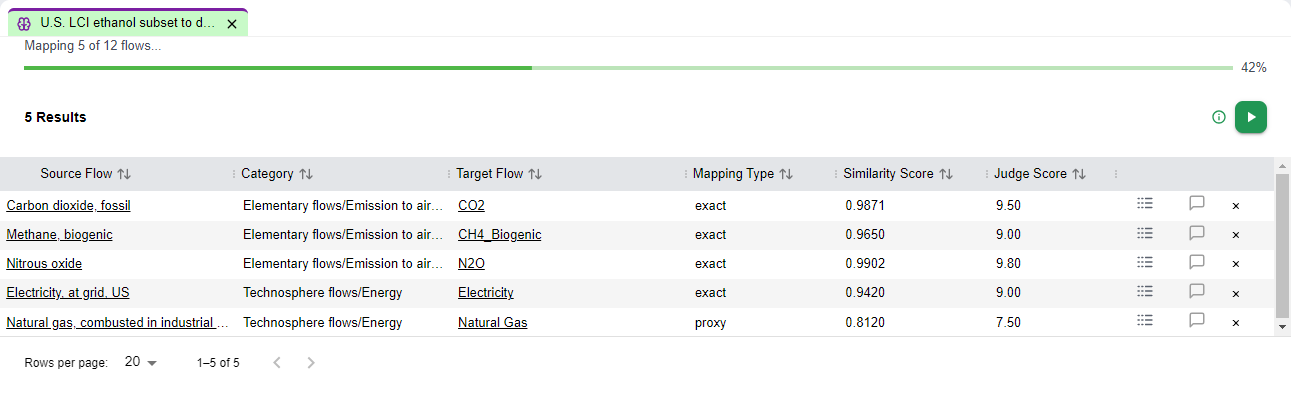
Results Table
The title shows the number of results. The table has the following columns:
| Column | Description |
|---|---|
| Source Flow | The imported flow that needs a replacement. Selecting it opens the flow in the Library |
| Category | The category of the source flow |
| Target Flow | The dataset flow suggested as a replacement. Selecting it opens the flow in the Library. Shows - when the service found no target |
| Mapping Type | The kind of match found. See Mapping Types |
| Similarity Score | How similar the target is to the source, shown with four decimals |
| Judge Score | The score the service gives to its own suggestion, from 0 to 10, shown with two decimals |
PyGREET highlights rows below the acceptance threshold in light red. You can sort by every score column, and by the flow, category and mapping type columns. The table is paginated: 10, 20, 50 or 100 rows per page, 20 by default.
Each row also has icon buttons at its right:
- View Logs opens the AI Pipeline Logs panel on the right. For the selected source flow, it lists one entry per step the service took, titled Iteration N followed by the step name. Select an entry to read its message. When there is nothing to show, the panel says No logs available.
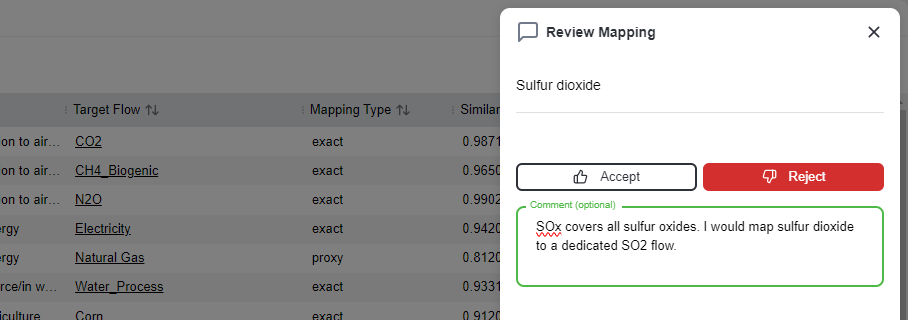
- Leave feedback opens the Review Mapping panel, which asks Was this mapping correct? Choose Accept or Reject, optionally type a comment and select Submit. The icon then becomes a green thumbs up (accepted) or a red thumbs down (rejected). Select it again to change the answer. Submitting feedback does not change which rows PyGREET applies, and PyGREET does not store the feedback in the dataset.
- Remove (the delete icon at the end of the row) removes the row from the results. PyGREET does not carry removed rows to the Mapping tab. This column is not available once you have applied the mapping.
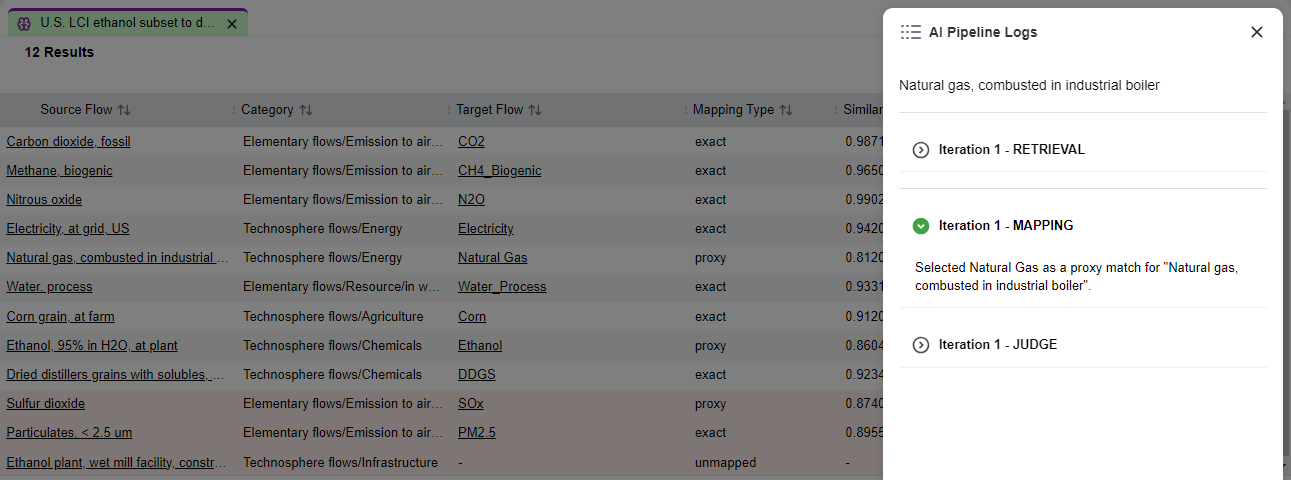
Mapping Types
| Mapping type | Meaning |
|---|---|
| exact | The source and target are the same substance under different names (for example, CO2 and Carbon Dioxide). The conversion factor is 1 |
| proxy | The source and target are different substances, and the target is used as a substitute. A conversion factor may apply |
| unmapped | Either the flow already represents itself and needs no substitution, or the service could not find a suitable match. There is no target flow |
Guardrails
When the table has rows, the i icon next to the green Map button lists the guardrails that apply:
- Semantic search results you removed are not applied to the mapping.
- Results below the acceptance threshold are removed automatically.
- Inputs from wells are not replaced with non-elementary flows.
- Emissions and wastes are not replaced with non-elementary flows.
- Substitutions where no unit conversion can be established between source and target are excluded.
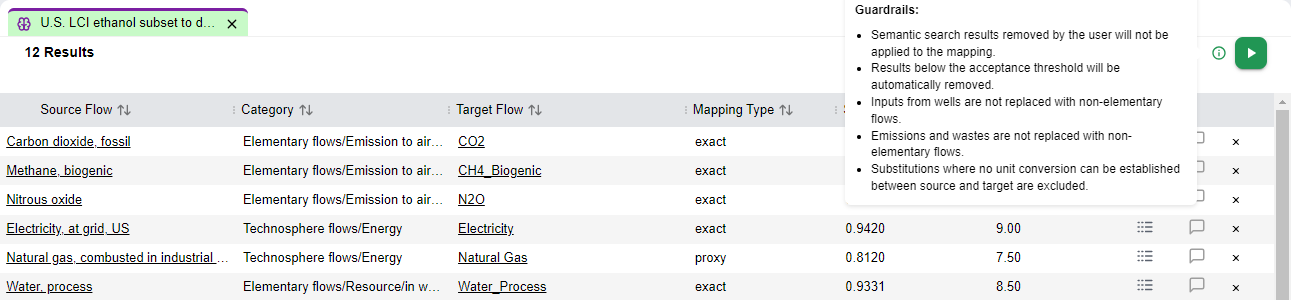
Rows with the unmapped type, or without a target flow, produce no replacement.
Interruptions
PyGREET saves the completed flows of a search on your computer as the search progresses. If the search stops before it finishes, a warning message above the table explains why and offers Clear and Resume:
| Reason | Message |
|---|---|
| OpenAI quota or rate limit reached | Your OpenAI quota or rate limit was reached. Completed flows are saved. Resume to process the remaining ones. |
| OpenAI key rejected | Your OpenAI API key was rejected. Update it in Settings, then resume to process the remaining flows. |
| Connection lost | The connection to the mapping service was lost. Completed flows are saved. Resume to process the remaining ones. |
| Application closed or crashed | This mapping's last batch was interrupted before it finished. Completed flows are saved. Resume to process the remaining ones. |
- Resume processes only the flows that were not completed.
- Clear asks for confirmation (Clear semantic search results?) and then deletes the saved semantic search results of the mapping and the saved point it resumes from. A new run processes every flow again.
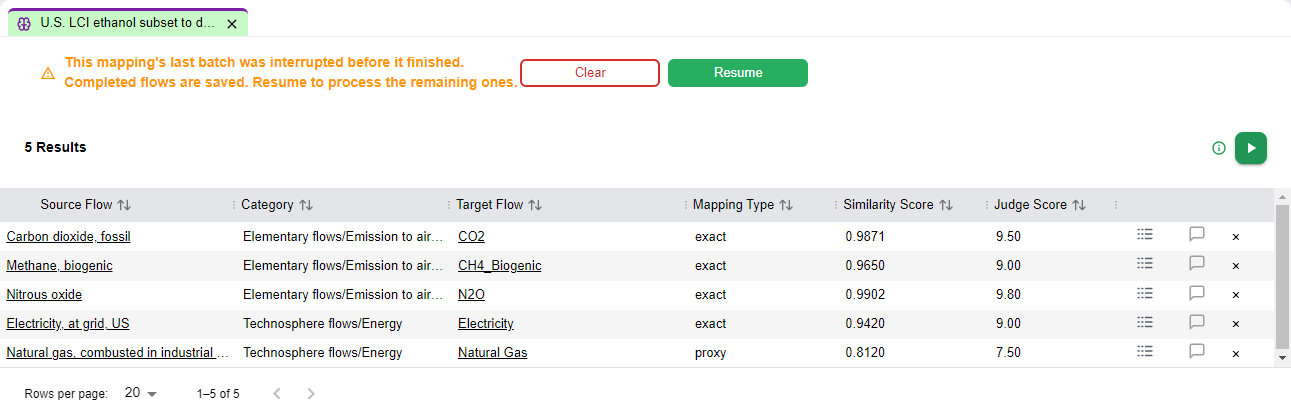
If you start PyGREET while an interrupted search exists, an Interrupted mapping task window offers Not now, Clear and Resume.
If a single flow fails, PyGREET reports Mapping failed for "name". It stays pending and will be retried on resume.
Mapping
Select the green Map button above the results table to move to the Mapping tab. The tab is locked until then, and it locks again if you leave it before you apply the mapping.
PyGREET sends the remaining results, the ones you did not remove, to be turned into replacements, showing Mapping... while it works. The tab then shows N Mapping Results and a table with the following columns:
| Column | Description |
|---|---|
| Source Flow | The flow that will be replaced. Selecting it opens it in the Library |
| Target Flow | The flow that replaces it. Selecting it opens it in the Library |
| Source Unit | The unit of the source flow |
| Target Unit | The unit of the target flow |
| Conversion Factor | The factor used to convert from the source unit to the target unit |
| Type | The level where the flow was found (for example, Input or Product) |
| Parent | The entity in the library that contains the flow. Selecting it opens it in the Library |
| Source | The library or dataset that the parent entity belongs to |
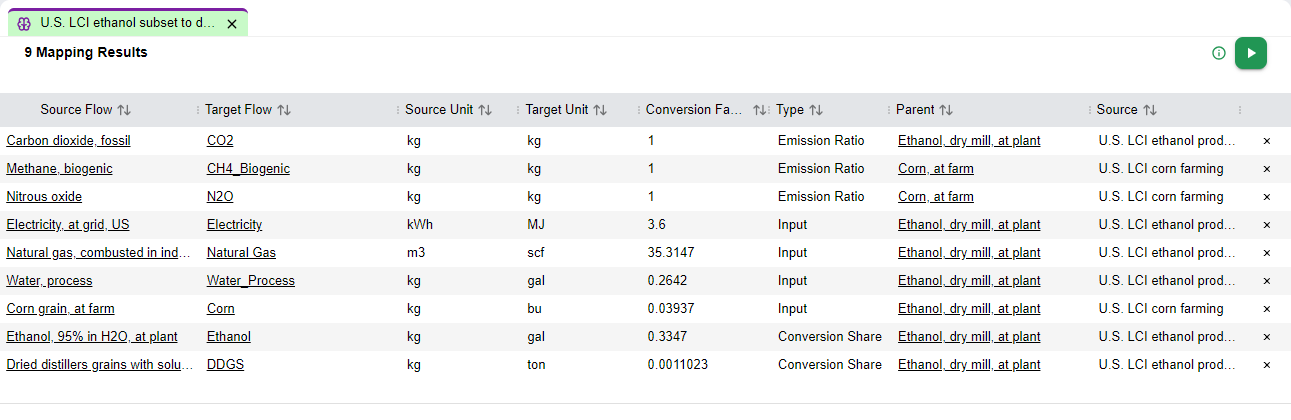
You can sort the columns. The table is paginated: 10, 20, 50 or 100 rows per page, 20 by default. Remove a row with its delete icon, and PyGREET does not apply removed rows. The guardrail the i icon shows here is: Removed substitutions will not be applied to the mapping.
Only suggestions that meet the acceptance threshold and have a target flow reach this table. PyGREET leaves out rows of the unmapped type, rows without a target, and rows whose judge score is below the threshold.
Select the green Apply Mapping button to replace the listed flows in the dataset. PyGREET then reloads the library elements and shows Mapping applied and library elements reloaded successfully.
After you apply the mapping:
- Has been applied? is selected, and Save, Semantic Search and Apply Mapping are disabled.
- The Mapping tab stays available, and the Semantic Search tab shows the results stored with the mapping, without contacting the service.
- The dataset has unsaved changes. Select Save at the bottom of the navigation panel to keep them, or Discard to return to the last saved dataset.
Limitations
- A semantic search needs a connection to the mapping service and a valid OpenAI API key. It cannot run offline.
- The service's suggestions are not guaranteed to be correct. Use the scores, the logs and the guardrails to review them before you apply them.
- PyGREET does not save with the mapping the rows you removed in the Semantic Search or Mapping tabs, or the answers you give with Leave feedback.
- You cannot modify an applied mapping or search it again. Use Save as New to start a new mapping from it.
- The mapping covers only the flows of the imports you select in the mapping.
Warning
Applying a mapping rewrites flows in the working copy of the dataset. See Save or Discard Changes to understand how to keep or undo the change.