Find Data in the Library
Use the Library to browse the flows, processes, pathways and other entities in your dataset, and to search them by name. The Library is organized in folders and shows only the folders that are relevant to the editor you have open.
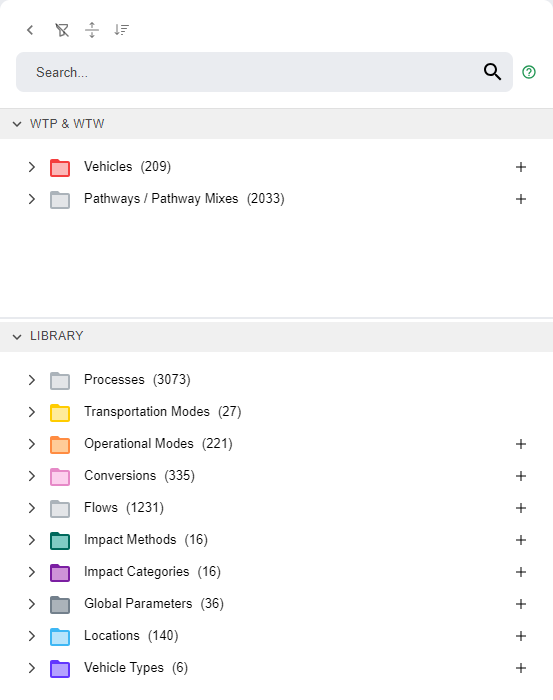
Find Ready-Made Results in the WTP & WTW Panel
The WTP & WTW panel sits above the main Library. It gives you a direct path to complete results, so you do not need to dig through individual processes, transportation steps or resources. It has two folders:
- Vehicles, organized by vehicle type
- Pathways / Pathway Mixes, organized by the name of the product or resource they produce
Each item here is already a full well-to-pump or well-to-wheels result. To change one, edit the underlying elements as described in Vehicles, Pathways and Pathway Mixes.
Find Building Blocks in the Library Panel
The Library panel sits below the WTP & WTW panel. It holds every other entity, organized by folder. These are the building blocks of a pathway: processes, transportation modes, operational modes, conversions and flows. It also holds the supporting entities: impact methods, impact categories, global parameters, locations and vehicle types.
Recognize Entities by Color and Icon
Folders and their tabs have a background color for each entity type. Some folders sit inside a larger parent folder. For example, Stationary Processes and Transportation Processes sit in the Processes folder. Parent folders are gray.
| Folder Name | Subfolder | Color | Entity Icon |
|---|---|---|---|
| Flows | Elementary Flow | Purple |  |
| Flows | Non-elementary Flow | Light Gray |  |
| Processes | Stationary Processes | Light Blue |  |
| Processes | Transportation Processes | Orange |  |
| Conversions | - | Pink |  |
| Transportation Modes | Tanker | Yellow |  |
| Transportation Modes | Barge | Yellow |  |
| Transportation Modes | Truck | Yellow |  |
| Transportation Modes | Pipeline | Yellow |  |
| Transportation Modes | Rail | Yellow |  |
| Transportation Modes | MagicMove | Yellow |  |
| Transportation Modes | Generic | Yellow |  |
| Operational Mode | Orange |  |
|
| Vehicles | - | Red |  |
| Vehicle Type | - | Indigo |  |
| Pathways | - | Green |  |
| Pathway Mixes | - | Dark Blue |  |
| Global Parameters | - | Dark Gray |  |
| Locations | - | Light Blue |  |
| Impact Methods | - | Dark teal |  |
| Impact Categories | - | Purple |  |
Search the Library
Search by Name
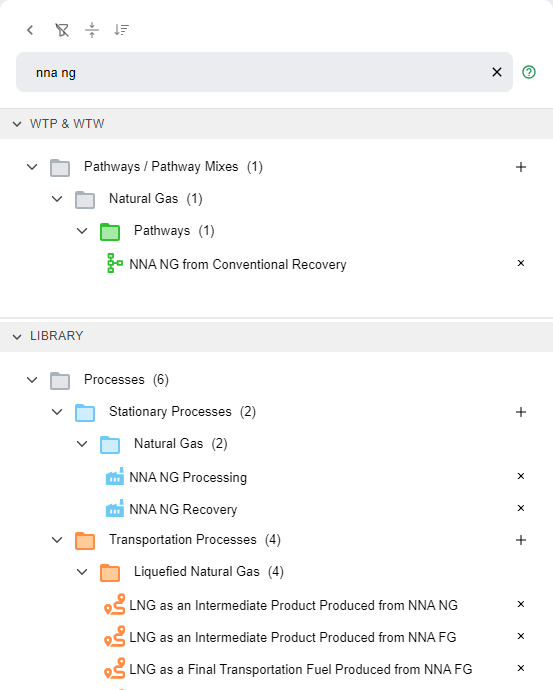
Type in the search bar at the top of the Library. The Library then shows only the entities whose names contain your search text.
Note
The search is case insensitive and shows your text in lower case.
For example, searching for nna ng shows only entities with "NNA NG" in their name.
Search by Entity Type
To limit the search to one entity type, start with @[Entity Type]/ and then type the name.
For example, searching for @flows/natural gas shows only flows with "natural gas" in their name.

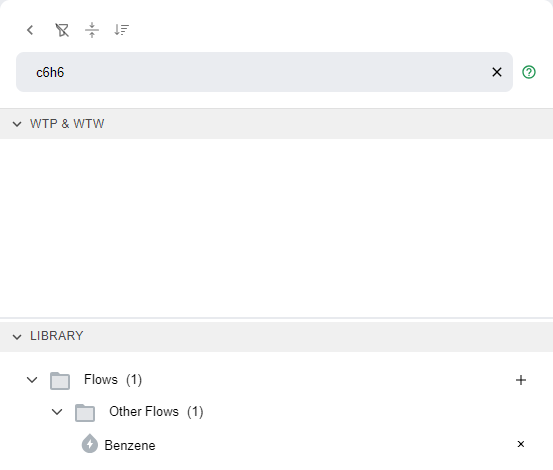
When you search for resources, you can also search by alternative name.
Create or Open an Entity
- To create an entity, hover over a folder and select the
+icon on the right side of the label that appears. - To open an entity, select it. It opens in a new tab in the main view.